macOS writes down every wake, with a reason. Run pmset -g log in Terminal, filter it to wake lines, and read the text after "due to". The usual reasons are the lid, a key press or trackpad click, the network, a USB or Thunderbolt device, or a timer that macOS set for its own background work.
| What woke it | What it looks like | What you can change |
|---|---|---|
| Lid, keyboard, or trackpad | You, or something pressing a key | Nothing, unless it happens in a bag |
| Network | Another computer using a shared printer, files, or Music | System Settings > Battery > Options > Wake for network access |
| A timer macOS set | DarkWake lines in the night, reasons with "Maintenance" or "SleepService" | Mostly nothing; see below |
| A schedule you or an app set | Listed by pmset -g sched | Remove the schedule |
| USB or Thunderbolt device | Wakes that stop when you unplug it | Unplug devices one at a time |
Find the wake reason with pmset
pmset -g log prints the Mac's history of sleeps, wakes, and other power events. It's long, so filter it:
pmset -g log | grep -E " (Wake|DarkWake) " | tail -30
Each line starts with the time, then the kind of wake, then a reason after "due to". A real line from one of our MacBooks, shortened:
2026-11-13 01:18:42 -0600 DarkWake DarkWake from Deep Idle [CDNPB] : due to ... rtc/Maintenance Using AC (Charge:100%)
The reason strings are written for Apple's engineers. Apple doesn't document them for users, and the format can change between macOS versions. Read them for the plain words you recognize. The last part, Using AC or Using Batt with the charge, tells you whether the Mac was on the charger.
What is the difference between Wake and DarkWake?
In pmset -g log, a Wake line is the Mac waking up normally, and a DarkWake line is a short background wake. Apple's open-source power management code logs "DarkWake to FullWake" when one of those background wakes turns into a normal one.
The 01:18 line above happened while nobody was at the Mac. The log also keeps a counter, "Dark Wake Count in this sleep cycle", and on that MacBook it once reached 105 in a single sleep. On the charger, that is ordinary. If you see the same pattern on battery and the morning charge is low, it's the first thing to look at. Why is my Mac losing battery while asleep shows how to measure that.
How to see which process asked for a wake
Just after each Sleep line, the log has a Wake Requests line. It lists the processes that asked macOS to wake the Mac at a set time, with the time they asked for.
On our MacBook, the Wake Requests line at 01:02 listed requests from system processes such as dasd and mDNSResponder, one of them for 01:18. The DarkWake above came at 01:18:42. For a timer wake you'll usually see the request logged at sleep, then a DarkWake at about that time with "Maintenance" or "SleepService" in the reason.
Most of these requests come from macOS itself and can't be turned off one by one. If an app you installed shows up there every night, that app's settings are the place to look.
Check scheduled wakes and wake settings
Schedules set with pmset or by an app are listed by:
pmset -g sched
The settings that allow wakes are shown by pmset -g. The pmset man page describes three that matter here:
womp, wake on Ethernet magic packet, is the same as Wake for network access in System Settings.powernapis Power Nap, on Macs that support it.proximitywakelets the Mac wake when devices on the same iCloud account are nearby, on supported Macs.
Changing settings with pmset needs root. For the first two, System Settings is the easier place:
- On a MacBook: System Settings > Battery > Options > Wake for network access. Apple lets you choose always, only on the power adapter, or never.
- On a desktop Mac: System Settings > Energy, then turn off Wake for network access. Enable Power Nap is in the same place on Macs that support it.
Apple's guide for this, "If your Mac sleeps or wakes unexpectedly", also lists sharing services, something pressing the keyboard or trackpad, and faulty USB or Thunderbolt devices. For devices, Apple's advice is to unplug them all, then reconnect them one at a time until the wakes come back.
What Lume's Woke by shows
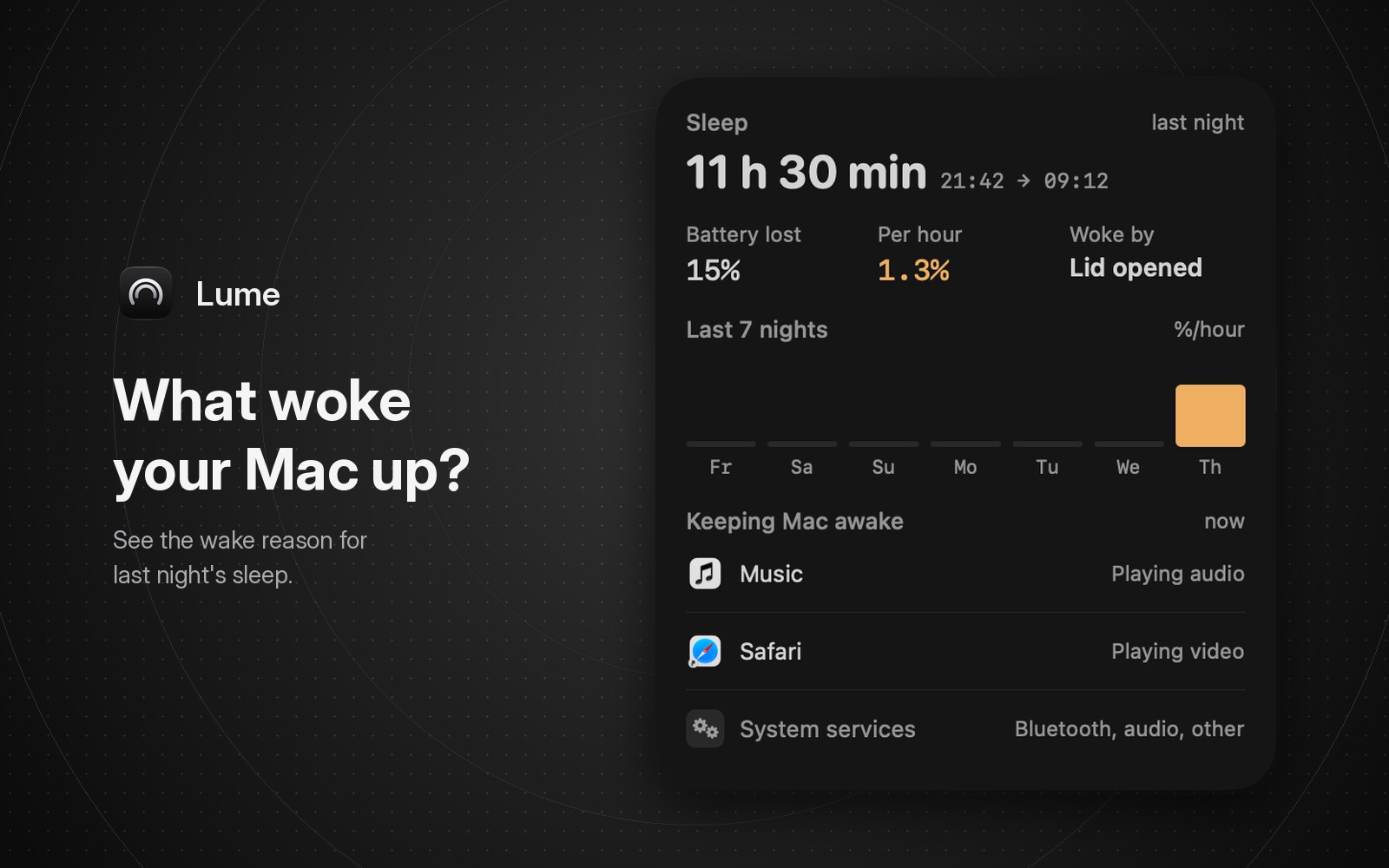
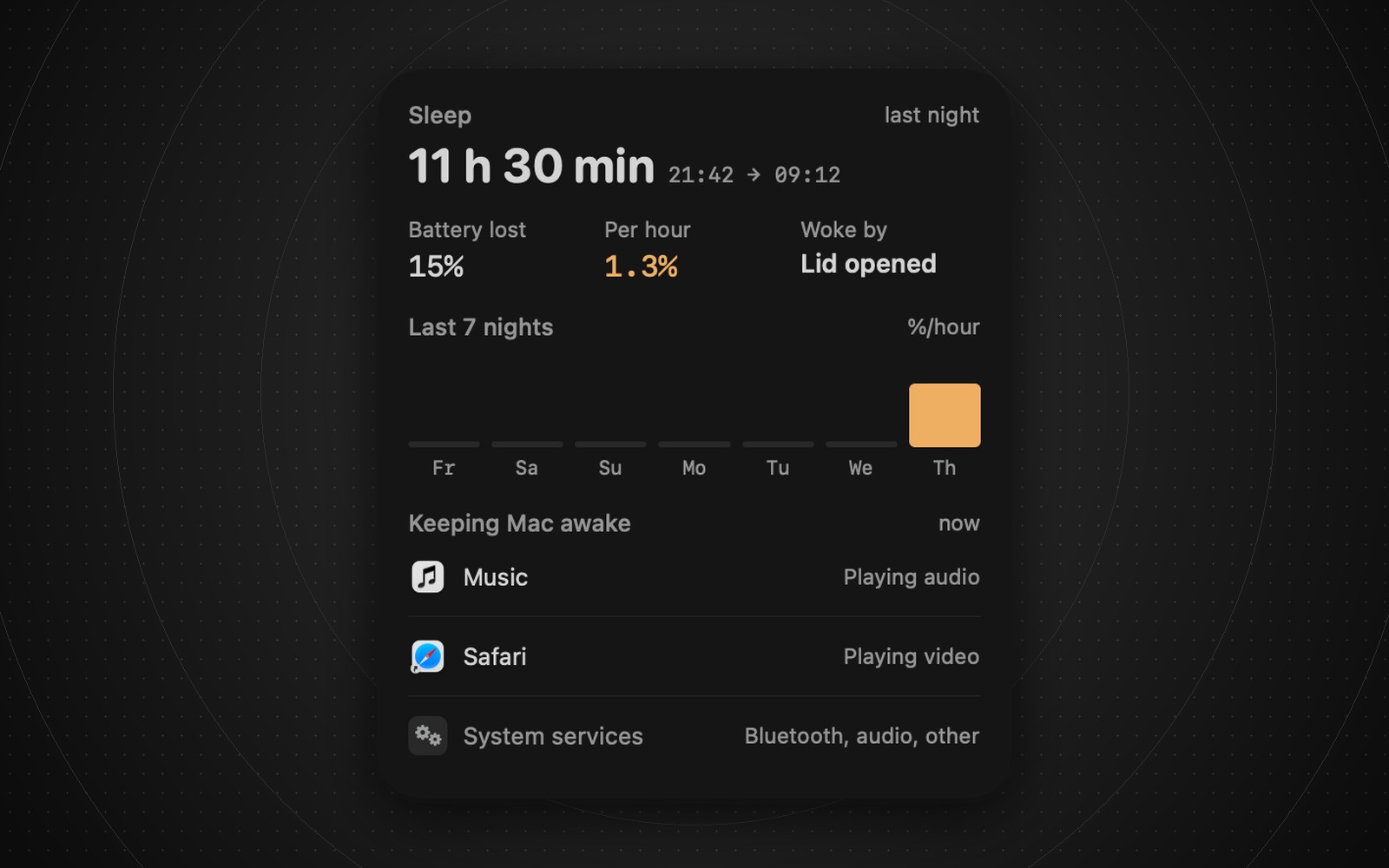
The free Sleep card on Lume's Battery page shows how long the last sleep was, when it started and ended, and what woke the Mac.
Woke by is a short label instead of the raw reason: Lid opened, Power button, Keyboard or mouse, USB device, Network, Scheduled task, You, or Other. In the image above, the Mac slept from 21:42 to 09:12, and the wake that ended the sleep was the lid opening.
Woke by only describes the wake that ended the sleep. Lume doesn't list the short dark wakes during the night. If you're chasing those, use pmset -g log, as we do.
With Lume you don't need Terminal to see last night's wake reason, and the Last 7 nights chart below it shows whether the night was unusual. On a MacBook the chart is battery lost per hour; on a desktop Mac the card sits on the Power page and the chart shows hours asleep.
The same card lists what is keeping the Mac awake right now. In the image it's Music, Safari, and System services for Bluetooth and audio. If your Mac won't go to sleep at all, start with Activity Monitor; how to read it is in what's using CPU and memory on a Mac. The next post in this series covers pmset -g assertions.
FAQ
Why does my Mac wake up at night by itself?
Usually a timer macOS set for background work, which shows as DarkWake lines with "Maintenance" or "SleepService" in the reason. Network access and connected devices are the next things to check.
Can I see the wake reason without Terminal?
Not in System Settings. Lume shows it as Woke by on its Sleep card.
What does DarkWake mean in pmset?
A short background wake. If it becomes a normal wake, the log says "DarkWake to FullWake".
Lume 0.2.0 is free on the Mac App Store, for macOS 14 or later. If you are comparing it with Activity Monitor, see the Activity Monitor alternative post.