To find the hex code of a color on your Mac screen, open Digital Color Meter from Applications > Utilities, choose View > Display Values > as Hexadecimal, hover over the color, and press ⇧⌘C to copy it. It comes with every Mac, so there's nothing to install.
If you do this many times a day, a menu bar color picker is quicker. In Tinta, our free one, you press ⌃⇧I from any app and click the pixel. Both ways are below, along with the reason a hex code sometimes comes out slightly wrong.
How to get a hex code with Digital Color Meter
- Open Digital Color Meter from Applications > Utilities, or via Spotlight.
- Choose View > Display Values > as Hexadecimal. Out of the box the app shows RGB as decimal numbers.
- Move the pointer over the color. The window shows a magnified view of what's under it.
- Press ⇧⌘C, or choose Color > Copy Color as Text, to copy the value to the clipboard.
Three settings help with small targets, all in Apple's Digital Color Meter guide:
- Drag the Aperture Size slider down to read a single pixel. A larger aperture averages every pixel inside it, which helps on a photo and gets in the way on a 1-pixel border.
- Press ⌘L to lock the aperture in place while you move the pointer away. ⌘X locks it horizontally and ⌘Y vertically.
- Press ⌥⌘C to copy the color as a small image swatch you can paste into a document.
Why the hex code doesn't match your design file
You pick a button you know is #0A84FF and get something a few digits off. The usual cause is the color space.
Digital Color Meter has a pop-up menu at the top of its window. If it's set to native values, you get the numbers your screen is being sent after macOS converts the color for your display, not the numbers in the CSS. For web colors, choose Display in sRGB from that menu before copying.
Two other things can shift a value by a digit or two:
- Night Shift and True Tone alter what's on the screen. Turn them off while you pick.
- Text is anti-aliased, so the edge of a letter blends with the background. Pick from the middle of a thick stroke, or from a flat area in the same color.
Other ways to get a hex code without installing anything
The shared Colors window in Mac apps has an eyedropper. In TextEdit, choose Format > Font > Show Colors, click the eyedropper, and click anywhere on the screen. The hex value sits in the sliders tab under RGB Sliders. Because it also recolors whatever is selected in the document, it suits coloring text more than collecting codes.
If the color is on a web page, right-click the element, choose Inspect, and read it from the Styles pane. That gives you the exact value the author wrote, with no color space to worry about, though it doesn't help for photos, video, or anything outside a browser.
How to pick a hex code with Tinta
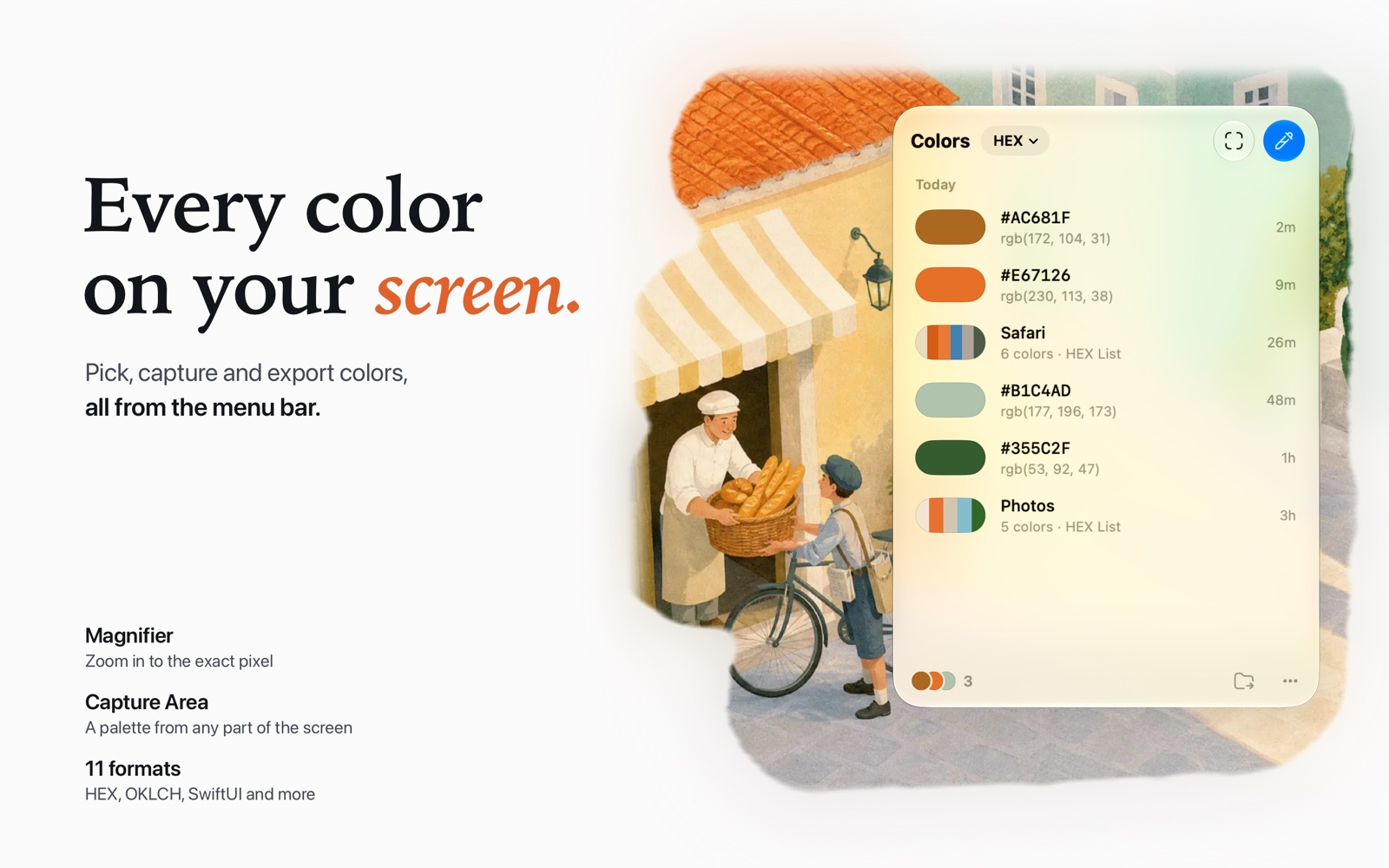
Tinta is a color picker that lives in the Mac menu bar.
- Press ⌃⇧I from any app, or click the eyedropper in Tinta's panel.
- Click the pixel you want.
- The color goes into History in the panel. Copy it from there in the format selected in the panel.
HEX is one of 11 formats, alongside RGB, HSL, HSB, OKLCH, Display P3, CMYK, SwiftUI, UIColor, NSColor and Flutter. Open a color to see all of them at once, or paste a color value in almost any format and Tinta opens that color.
Every pick stays in History, so the hex code you copied an hour ago is still there after you copy something else. Picking, all 11 formats and 7 days of History are in the free download.
When you need the exact pixel
Icons, hairlines and small text are hard to hit with a pointer. Tinta Pro ($9.99 once in the US, not a subscription) adds a 4× to 32× magnifier with a pixel grid and single-pixel nudging. For photos and noisy textures, it can average over 3×3 or 5×5 pixels, and you can collect several colors in a row before you finish.
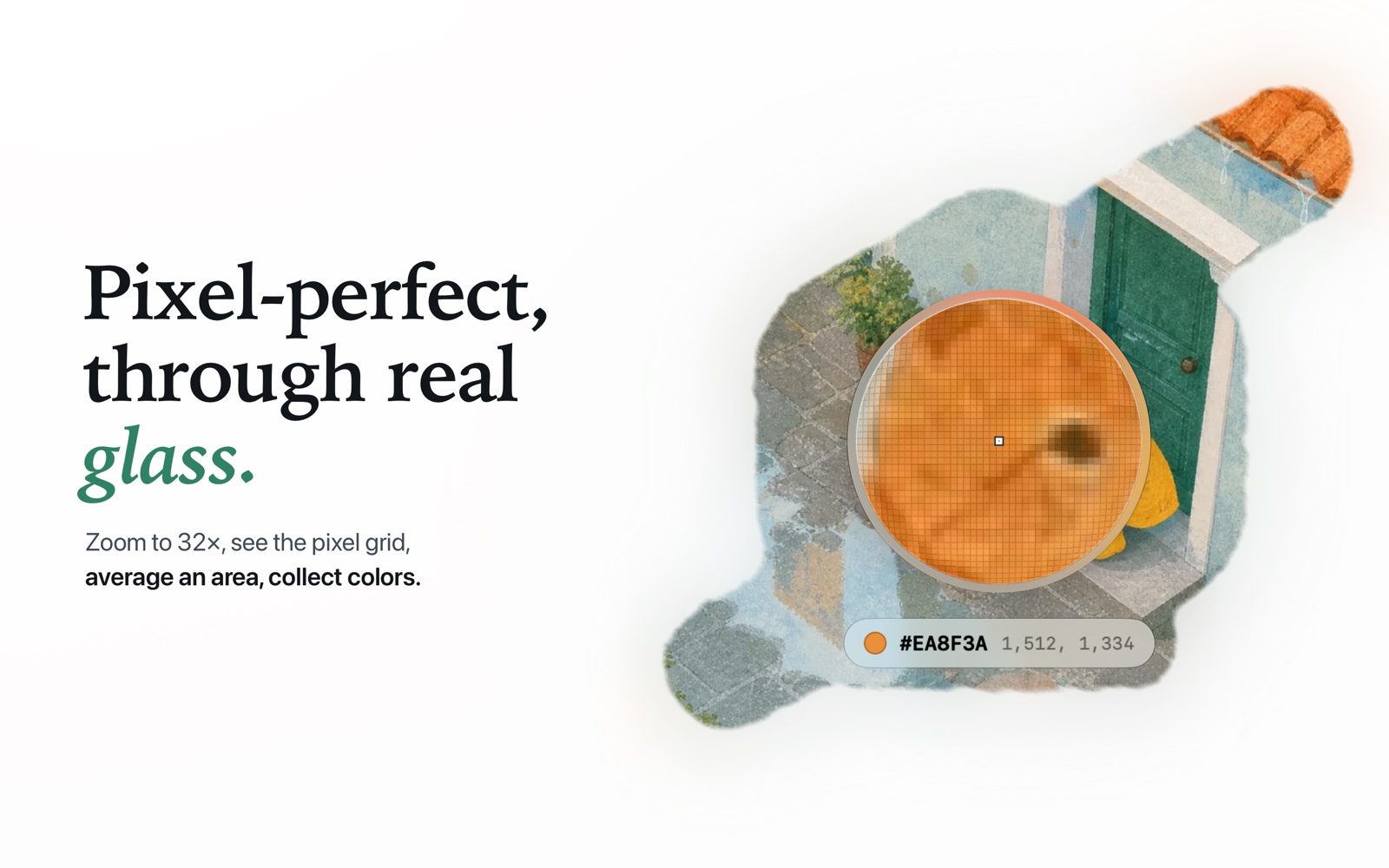
The magnifier needs the Screen Recording permission, which Tinta uses only to read pixels on your Mac.
Digital Color Meter and Tinta compared
| Digital Color Meter | Tinta | |
|---|---|---|
| Price | Comes with macOS | Free. Tinta Pro is $9.99 in the US, paid once |
| Where it lives | A window in Utilities | The menu bar |
| Start picking | Open the app, then hover | ⌃⇧I from any app |
| Hex code | Yes, via View > Display Values > as Hexadecimal | Yes |
| Other formats | Decimal, hexadecimal or percentage | 11, including OKLCH, Display P3 and SwiftUI |
| History | No | Yes. 7 days free, 3 months with Tinta Pro |
| Magnifier | Fixed magnified view, adjustable aperture | 4× to 32× with a pixel grid, in Tinta Pro |
| Requirements | Every Mac | macOS 26.0 or later, Apple silicon and Intel |
Digital Color Meter is the better choice when you need one code, once, on a Mac you can't install apps on, or on macOS 15 Sequoia or earlier, where Tinta won't install.
Tinta is the better choice when picking colors is part of your day. It's one shortcut away, keeps your history, and copies in the format your code or design tool expects. If you need several colors from the same picture, it can also turn part of the screen into a palette.
Tinta is a free download on the Mac App Store.
Hex color code FAQ
Does the Mac have a built-in color picker? Yes, two: Digital Color Meter in Applications > Utilities, and the eyedropper in the Colors window of apps like TextEdit and Pages.
How do I make Digital Color Meter show hex codes? Choose View > Display Values > as Hexadecimal, then press ⇧⌘C to copy the color under the pointer as text.
Why is my hex code slightly different from Figma or CSS? Switch Digital Color Meter's pop-up menu to Display in sRGB, and turn off Night Shift and True Tone while picking.
What's the shortcut to pick a color on a Mac? macOS has no system-wide shortcut. Digital Color Meter uses ⇧⌘C while open; Tinta starts a pick from any app with ⌃⇧I.
Is Tinta free? Yes. Picking, all 11 formats and 7 days of History are free. Tinta Pro ($9.99 once in the US) adds the magnifier, gradients, extra export formats and 3 months of history.
Does Tinta send my screen anywhere? No. Tinta has no account and makes no network connections of its own. Only the optional Tinta Pro purchase goes online, handled by Apple's App Store.