How you get a CSS gradient depends on what the gradient is made of. If it's on a web page and was written in CSS, open the browser's developer tools and copy the background value, which gives you the exact code. If it's a picture, such as a screenshot, a mockup or a video frame, there's no code behind it. You have to read the colors along a line and rebuild it as color stops.
With Tinta Pro, our menu bar color picker for Mac, you drag across the gradient on the screen and copy the result as CSS, SwiftUI or Tailwind. The manual way and the web tools are below as well.
Copy a gradient from a website with developer tools
Try this first when the gradient is on a web page. If it works, you get the author's own code.
- Right-click the element with the gradient and choose Inspect.
- In the Styles pane, find the
backgroundorbackground-imagedeclaration withlinear-gradient(...)in it. - Right-click the declaration and choose Copy value. Chrome's DevTools reference lists this next to Copy declaration.
It won't work if the gradient is an image file, is drawn on a canvas, or sits inside a video. In those cases the Styles pane shows a URL or nothing useful. It also can't help with a Figma export, a slide, or another app's window.
Rebuild a gradient by hand
A linear gradient is a direction and a list of color stops. From MDN: 0deg points to the top and larger angles turn clockwise, so 90deg runs left to right and 180deg runs top to bottom. If you leave the direction out, it defaults to top to bottom.
- Decide the direction. Top to bottom is
180deg, left to right is90deg. - Pick the color at the start and at the end. Digital Color Meter does this on any Mac, and we have a guide to getting a hex code from the screen.
- Write it down:
linear-gradient(180deg, #80B7C6 0%, #F2E3CB 100%). - Compare it with the original. If the middle looks wrong, pick a color halfway along and add it as a stop at
50%.
Step 4 is where the time goes. Most gradients you'll want to copy have more than two stops, and the stops are rarely evenly spaced. A painted sky that meets a cream wall, for instance, needs stops close together where the two meet. Finding them by eye means picking, guessing a percentage, and comparing, several times over.
Web tools that read a gradient from an image
A few tools do the sampling for you. All of them start from an image file, so for a gradient in another app you take a screenshot first.
- GradientFinder describes itself as "an entirely in browser way to convert an image to its CSS gradient". You drop an image on the page and choose an angle.
- Adobe Color's gradient extractor takes an uploaded photo and lets you choose between 2 and 15 colors. The page talks about copying HEX codes and downloading HEX or RGB values, and doesn't mention CSS code.
- MultiPoint Gradient is a Chrome extension. Its listing says it samples gradients on a web page with a line tool and exports CSS, Tailwind, SVG or JSON. It works inside the browser.
These descriptions come from each tool's own page, read on November 25, 2026. We didn't test them for this post.
Read a gradient from the screen with Tinta
Tinta Pro reads a gradient straight from the screen, so the source can be a web page, a design file, a paused video or a screenshot you already have open.
- Start a pick with ⌃⇧I, or click the eyedropper in Tinta's panel.
- Instead of clicking one pixel, drag a line across the gradient, from where it starts to where it ends.
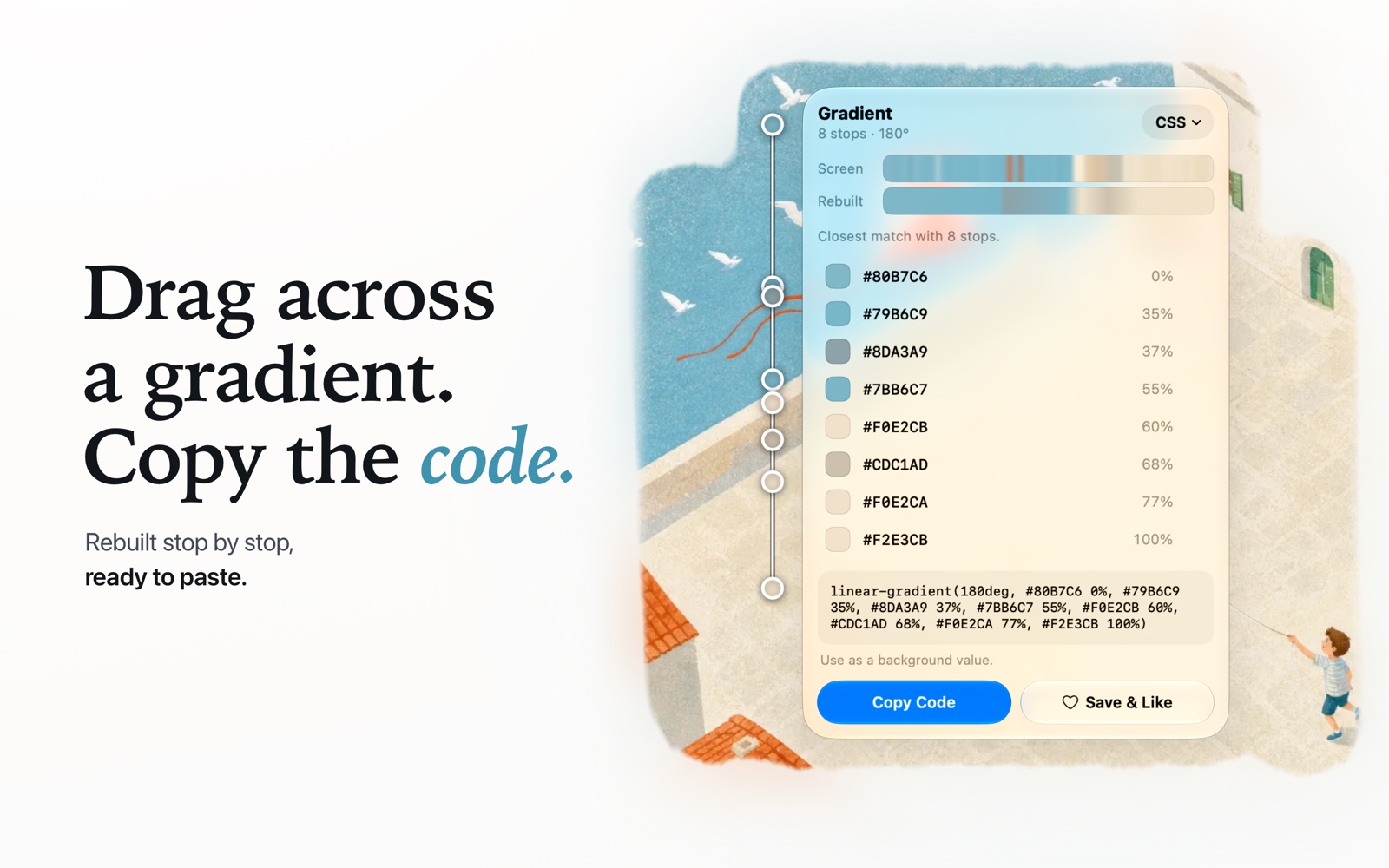
- Tinta shows the gradient it rebuilt: the number of stops, the angle, and each stop's color and position.
- Choose CSS, SwiftUI or Tailwind, then press Copy Code. Save & Like keeps it for later.
The panel shows two strips, one above the other. Screen is what Tinta read along your line. Rebuilt is the gradient its stops produce. If the two strips look the same, the code will too.
In the screenshot at the top of this page, a painted sky and wall came out as eight stops at 180°:
linear-gradient(180deg, #80B7C6 0%, #79B6C9 35%, #8DA3A9 37%, #7BB6C7 55%, #F0E2CB 60%, #CDC1AD 68%, #F0E2CA 77%, #F2E3CB 100%)
Use it as a background value. Notice the positions: 35%, 37%, 55%, 60%. That uneven spacing is the part that's slow to find by hand.
Reading the screen needs the Screen Recording permission, which Tinta uses only to read pixels on your Mac.
Getting a clean result
- Drag along the direction the gradient actually runs. A line drawn at a slant across a vertical gradient gives you a slanted angle.
- Keep the line clear of text, icons and shadows. Whatever is under the line can become a stop.
- A gradient in a photo or a compressed screenshot isn't perfectly smooth, so expect more stops than the designer used. You can delete the ones you don't need from the pasted code.
- Start and end just inside the gradient's edges, so a border or rounded corner doesn't end up as the first or last stop.
Which way to use
Use developer tools when the gradient is CSS on a page you can inspect. Nothing beats the original code.
Use a web tool when you already have the image as a file and only need this once in a while.
Use Tinta Pro when the gradient is somewhere a browser can't reach, when you want SwiftUI or Tailwind as well as CSS, or when you'd rather not upload a client's design to a website. Tinta has no account and makes no network connections of its own.
Tinta is a free download on the Mac App Store. Gradients are part of Tinta Pro, a one-time in-app purchase of $9.99 in the US. It isn't a subscription. Tinta needs macOS 26.0 or later.
CSS gradient FAQ
Can I get a CSS gradient from a screenshot? Yes, by sampling it. A screenshot has no code in it, so a tool reads the colors along a line and writes them as color stops. Web tools such as GradientFinder do this from an image file. Tinta Pro does it from the screen.
How do I copy a gradient from a website?
Right-click the element, choose Inspect, find the background or background-image declaration in the Styles pane, then right-click it and choose Copy value. If the gradient is an image and not CSS, sample it instead.
Why does my copied gradient have so many stops? The tool matched what's on the screen, including noise from compression and anything the line crossed. The more faithful the match, the more stops. Remove the ones that are close together and nearly the same color if you want simpler code.
Is the gradient feature in Tinta free? No. Picking colors and making palettes are free. Gradients, the magnifier and the extra export formats are in Tinta Pro, which is $9.99 in the US, paid once.
Which formats does Tinta copy a gradient in? CSS, SwiftUI and Tailwind.