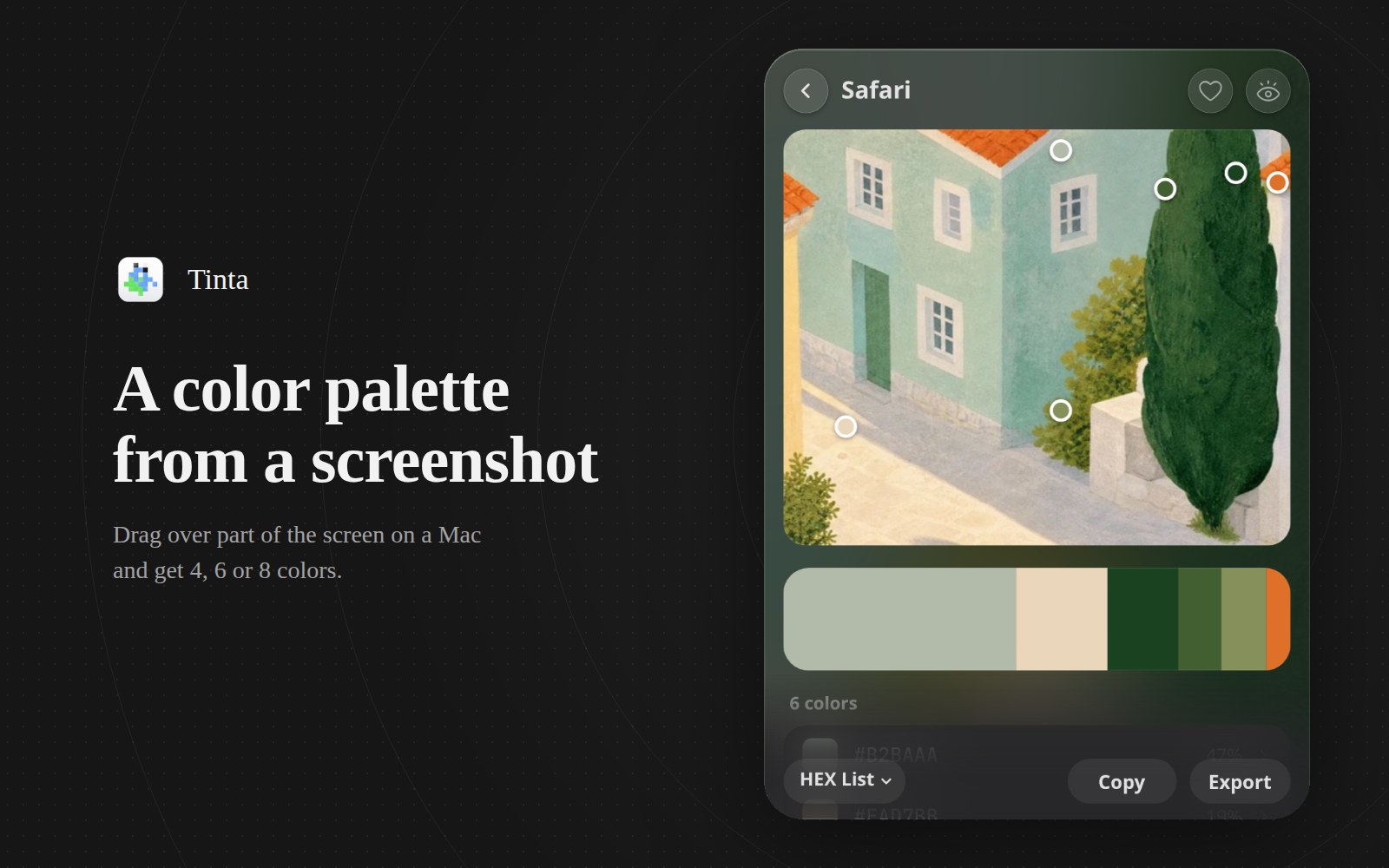
To get a color palette from a screenshot on a Mac, use a tool that reads a whole area at once, because the color tools that come with macOS read one color at a time. In Tinta, our free menu bar color picker, press ⌃⇧A, drag over the part of the screen you want, and choose 4, 6 or 8 colors. You don't need to save the screenshot first, and if you already have an image file, you can drop it on Tinta's menu bar icon instead.
Below are the built-in ways, the web tools, and how Tinta compares with other Mac apps that do the same job.
Can a Mac make a palette from an image without an extra app?
Not in one step. macOS has two color tools, and both work one color at a time.
Digital Color Meter, in Applications > Utilities, shows the value of whatever is under the pointer. Press ⇧⌘C to copy it as text. A larger aperture averages the pixels inside it, which helps on a photo, but it still gives you one color. To build a palette of six colors this way, you hover, copy and paste six times.
The Colors window that most Mac apps share (in TextEdit, press ⇧⌘C) has an image palettes view, and you click a color in it. It changes the color of whatever you have selected in the document, so it's meant for coloring text and shapes rather than collecting values.
Apple's Digital Color Meter guide notes that the values it shows depend on the color space you choose in its pop-up menu. For web colors, choose Display in sRGB before you copy anything.
How to get a color palette from an image with web tools
Web tools such as Adobe's Color Palette Generator From Image and the Coolors image picker work in any browser. In Adobe's tool you upload a photo, and it extracts colors that you can adjust.
Both need an image file. If the colors are in a video, a Figma prototype or another app's window, you take a screenshot first, save it, then add it to the page. They also mean putting the image into a website, which you may not want to do with a client's unreleased design.
How to get a palette from part of the screen with Tinta
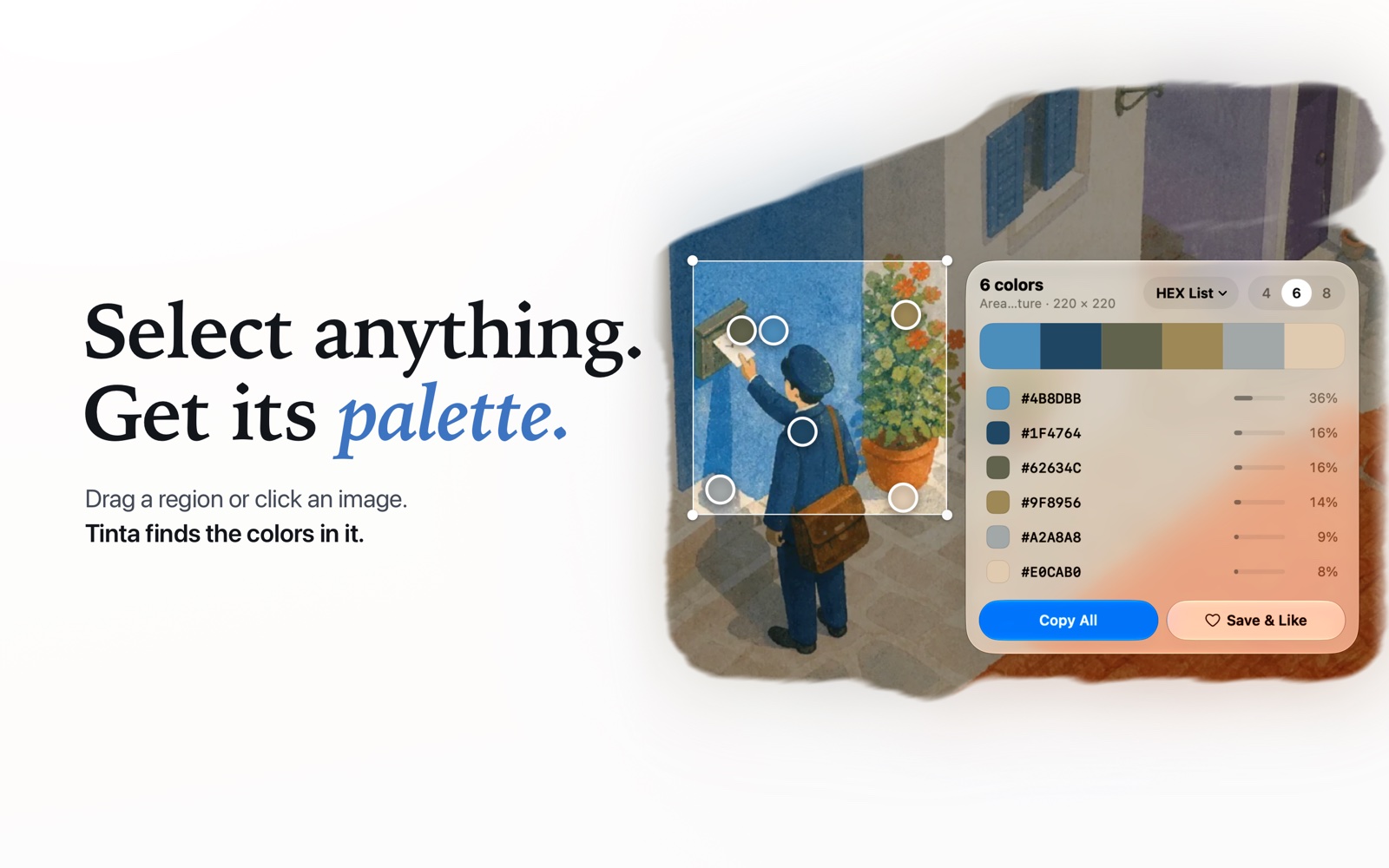
- Press ⌃⇧A from any app. Capturing an area needs the Screen Recording permission, and Tinta uses it only to read pixels on your Mac.
- Drag over the part of the screen you want, such as a photo on a website or a paused video frame.
- Pick 4, 6 or 8 colors. Each color shows its share of the area as a percentage.
- Copy a color in the format you need, use Copy All for the whole palette, or Save & Like to keep it.
Drag over only the part you want colors from. Everything inside the area you drag counts toward the palette.
If you already have the image as a file, drop it on the Tinta icon in the menu bar, and Tinta makes the palette from the file.
Capturing an area is part of the free download.
Checking a palette's shades, contrast and color-blind view
Tinta copies colors in 11 formats: HEX, RGB, HSL, HSB, OKLCH, Display P3 and CMYK, plus SwiftUI, UIColor, NSColor and Flutter. You can also paste a color value back in, and Tinta opens that color.
Open a color to see more about it:
- Shades from 50 to 950, generated in OKLCH, which you can use as a starting point for a Tailwind-style scale.
- Harmonies: complementary, analogous, triadic, split and square.
- WCAG contrast against white and against black.
- The closest Tailwind, CSS named and Apple system colors.
- A color-blind preview for Protan, Deutan, Tritan and Mono vision, which shows which colors become hard to tell apart.
The color-blind preview is worth a look before you hand a palette to anyone. A red and a green that look distinct to you can be hard to tell apart for someone with Deutan vision.
History and Liked keep what you pick. The free download shows the last 7 days of History. Tinta Pro, a one-time $9.99 purchase in the US, keeps 3 months.
Exporting a palette to other apps
- Free: export a palette as an Apple Color List or a GIMP palette.
- Tinta Pro: export a palette for Adobe (.ase), Procreate, Xcode or Design Tokens, and export a color's shades as Tailwind, CSS variables, Design Tokens or SwiftUI.
If you paint in Procreate, you can take a palette from a reference photo on your Mac and export it for Procreate with Tinta Pro.
Tinta compared with other ways to get a palette
| Tinta | ColorCopy | Digital Color Meter | |
|---|---|---|---|
| Price | Free. Tinta Pro is $9.99 in the US, paid once | Free with 30 copies a month. Pro is $9.99, paid once | Comes with macOS |
| Palette from part of the screen | Yes, press ⌃⇧A and drag | Its site describes palettes from an image you drop in or paste | No, one color at a time |
| Palette from an image file | Drop the image on Tinta's menu bar icon | Drop the image in or paste it | No |
| Number of colors | 4, 6 or 8 | 2 to 24, with a choice of K-means, median cut or octree | One |
| Palette export | Apple Color List and GIMP; Adobe .ase, Procreate, Xcode and Design Tokens with Tinta Pro | .ase, .clr, JSON, CSS, HTML, plain text, PNG and PDF | No |
| Requirements | macOS 26.0 or later, Apple silicon and Intel | macOS 14 or later, Apple silicon and Intel | Comes with every Mac |
| Where you get it | Mac App Store | Download from colorcopy.app | Applications > Utilities |
Everything about ColorCopy comes from colorcopy.app, which we read on November 25, 2026. We haven't used it ourselves.
When ColorCopy, ColorSlurp or a web tool is the better choice
ColorCopy gives you more control over the palette. You pick anywhere from 2 to 24 colors, choose between K-means, median cut and octree, and sort by frequency, hue or lightness. In Tinta you choose 4, 6 or 8 colors.
ColorCopy runs on macOS 14 and later. Tinta needs macOS 26.0 or later, so if you're still on macOS 15 Sequoia or earlier, it won't install.
ColorSlurp, according to its site, makes palettes from your photos and has an iPhone app that builds them from the camera. If you collect colors from the real world, that's something Tinta doesn't do.
A web tool is enough if you only need a palette once in a while and already have the file.
When Tinta is the better choice
Tinta reads the colors from the screen, so you don't need an image file to start. Press ⌃⇧A over a paused YouTube frame or a Dribbble shot and you have the palette, without saving a screenshot you'll delete later.
Tinta doesn't upload anything. It has no account and makes no network connections of its own. The only thing that goes online is the Tinta Pro purchase, which Apple's App Store handles. The App Store privacy label says Tinta doesn't collect data.
You can check shades, contrast, the nearest Tailwind color and the color-blind preview in Tinta, instead of pasting HEX codes into other websites.
If the screenshot has a gradient instead of flat colors, Tinta Pro can rebuild it. Drag a line across the gradient and copy it as CSS, SwiftUI or Tailwind.
Tinta is a free download on the Mac App Store. Tinta Pro is optional, $9.99 in the US, paid once.
Color palette from a screenshot FAQ
How do I get the colors from a screenshot on a Mac? For one color, open Digital Color Meter, hover over it and press ⇧⌘C. For a whole palette, use an app that reads an area. In Tinta, press ⌃⇧A, drag over the screenshot and choose 4, 6 or 8 colors.
Is Tinta free? Yes. Tinta is a free download, and capturing an area as a palette is included. Tinta Pro is a one-time in-app purchase of $9.99 in the US that adds the magnifier, gradients, more export formats and 3 months of history.
Do I need to save a screenshot first? No. Tinta reads the area you drag over on the screen. If you already have an image file, drop it on Tinta's menu bar icon.
Can I get a color palette from a website? Yes. Open the page, press ⌃⇧A and drag over the part you want, such as the header or a product photo.
Does Tinta upload my screenshots? No. Tinta has no account and makes no network connections of its own. It needs the Screen Recording permission to read pixels, and uses it only on your Mac.
Can I use the palette in Procreate or Adobe apps? Yes, with Tinta Pro. Tinta Pro exports palettes for Procreate and as Adobe .ase files, as well as for Xcode and Design Tokens.
Which Macs does Tinta run on? Tinta needs macOS 26.0 or later and runs on both Apple silicon and Intel Macs. It's in English.